
Seventh > Sections > Shop the look (product slider)
Shop the look (product slider)
The Shop the look (product slider) section combines a styled image with hotspots and a linked product slider. Each hotspot maps to a product, and the slider shows product cards in the same order as the hotspots.
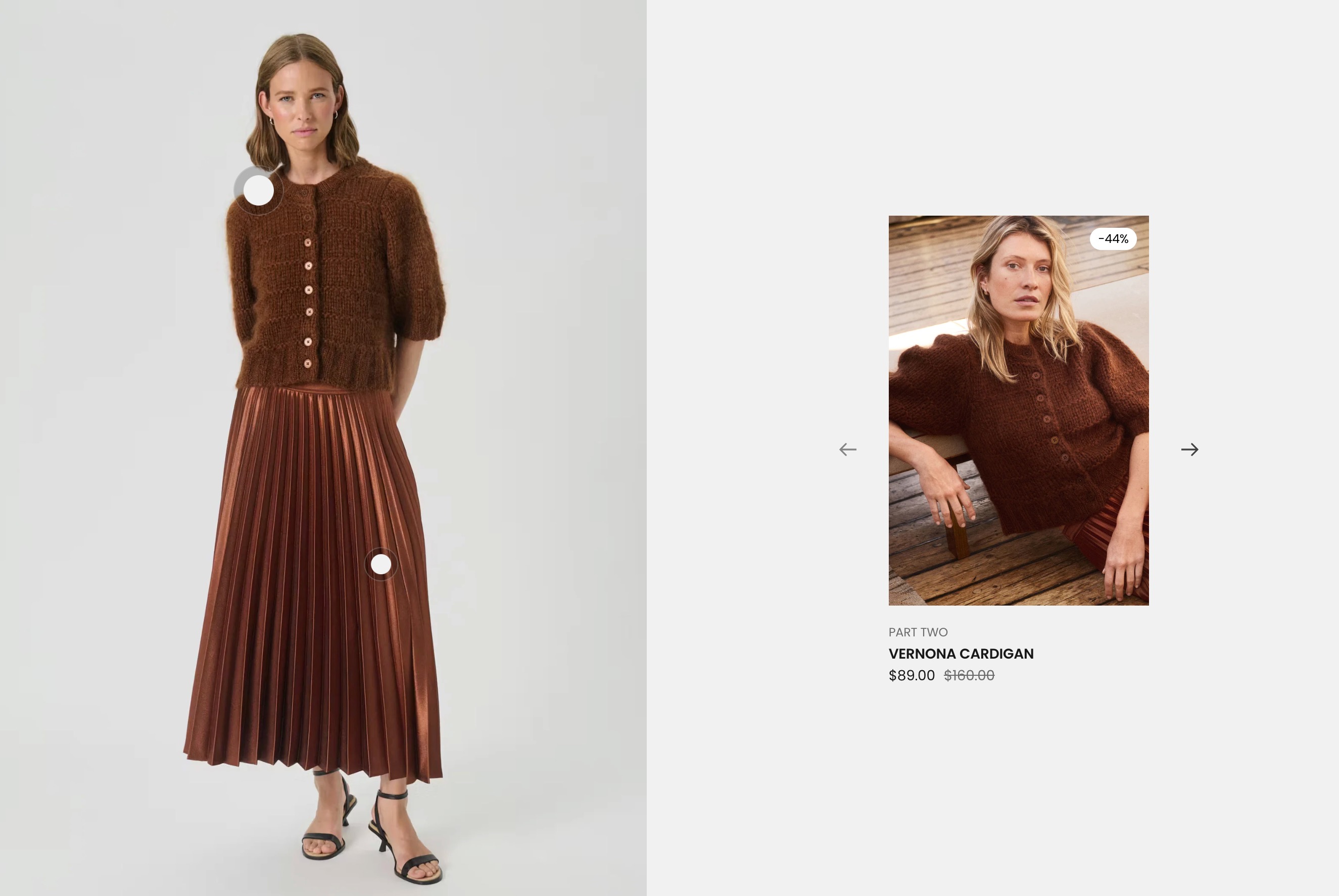
What it does
This section displays:
- A single shop the look alternate card
- Hotspots positioned over an image
- A product slider generated from hotspot-linked products
- Optional section header with sticky behavior
Tip: Read about general section styling here: Seventh section general styles.
Alternate card settings
The section contains one static Shop the look alternate card block.
Media
- Image: main image where hotspots are placed.
- Image ratio: controls media area ratio.
- Image position: left or right layout for media column.
Card style
- Media overlay: overlay color on image.
- Padding: card internal spacing.
- Add padding to media: toggles inset media spacing.
- Border radius: card corner rounding.
- Color scheme: card color scheme.
Behavior details:
- The product slider is auto-generated from hotspot product handles.
- If no image is set, a placeholder image is shown.
- Slider navigation appears when multiple linked products are present.
Hotspot settings
Each hotspot uses the Shop the look alternate spot block
Product
- Selects which product this hotspot points to.
Horizontal position
- Sets hotspot X position as a percentage.
Vertical position
- Sets hotspot Y position as a percentage.
How this connects to the slider:
- Every hotspot with a selected product contributes one product card to the slider.
- Card order follows hotspot block order.
Common use cases
- Build complete outfit lookbooks with linked items.
- Highlight room scenes with shoppable furniture/decor.
- Create editorial-style image stories with direct product discovery.
Troubleshooting
- If slider cards are missing, check that each hotspot has a product selected.
- If hotspot positions look off, fine-tune horizontal/vertical percentages.
- If layout feels unbalanced, switch image position and adjust card spacing.