
Local > Product comparison
The theme includes a Product comparison tool that lets shoppers view multiple products side by side in a table. This makes it easier to compare things like price, ratings, availability, specifications, and other product details — without switching between product pages.
There are two ways to use Product Comparison:
- Product Comparison section - This section can be added to any page (the home page, a regular page, or a product page), and choose which products to compare. The same products are displayed to every shopper. This is ideal when you want to create a comparison table with a specific set of products. Optionally, when the section sits on a product page, it can automatically show the product currently being viewed as the first column.
- Product Comparison template - Shoppers choose the products themselves while browsing a collection, then open a dedicated comparison page with their selection.
General overview
Both sections render the same table and share the same blocks and design options. The only real difference is where the products come from. Up to 4 products can be compared at once in either mode.
The comparison table is built in the same way:
- Each product is a column. Every manually added product becomes one column in the table.
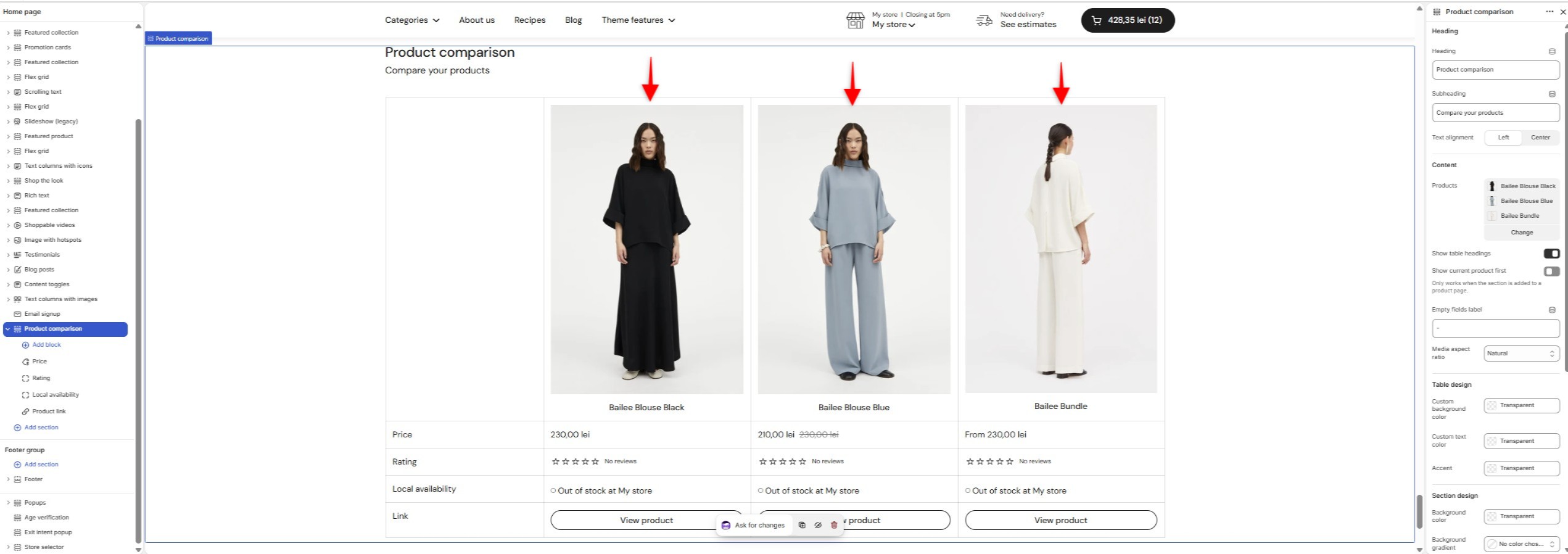
- Each row is a block. Each block represents one piece of product information you want to compare (such as Price, Rating, Description, Variants, etc.). Add the blocks you need and arrange them in the order you want them to appear. Each block becomes a row in the table, and each product column displays its value for that row..
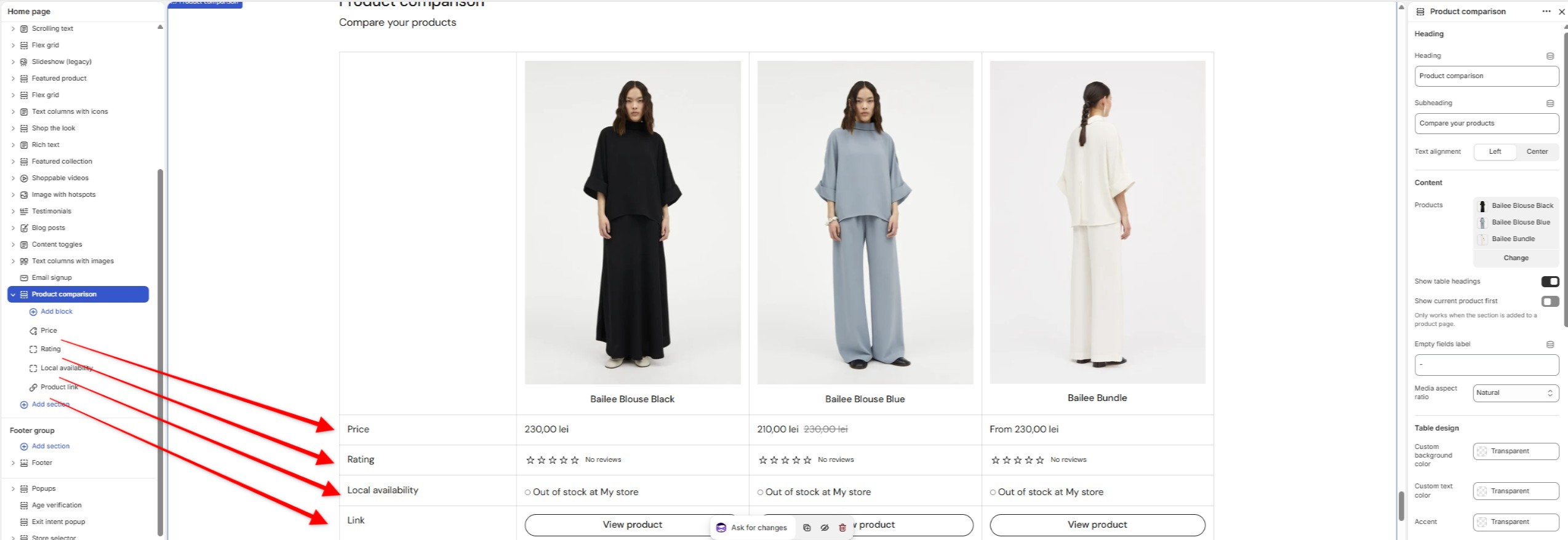
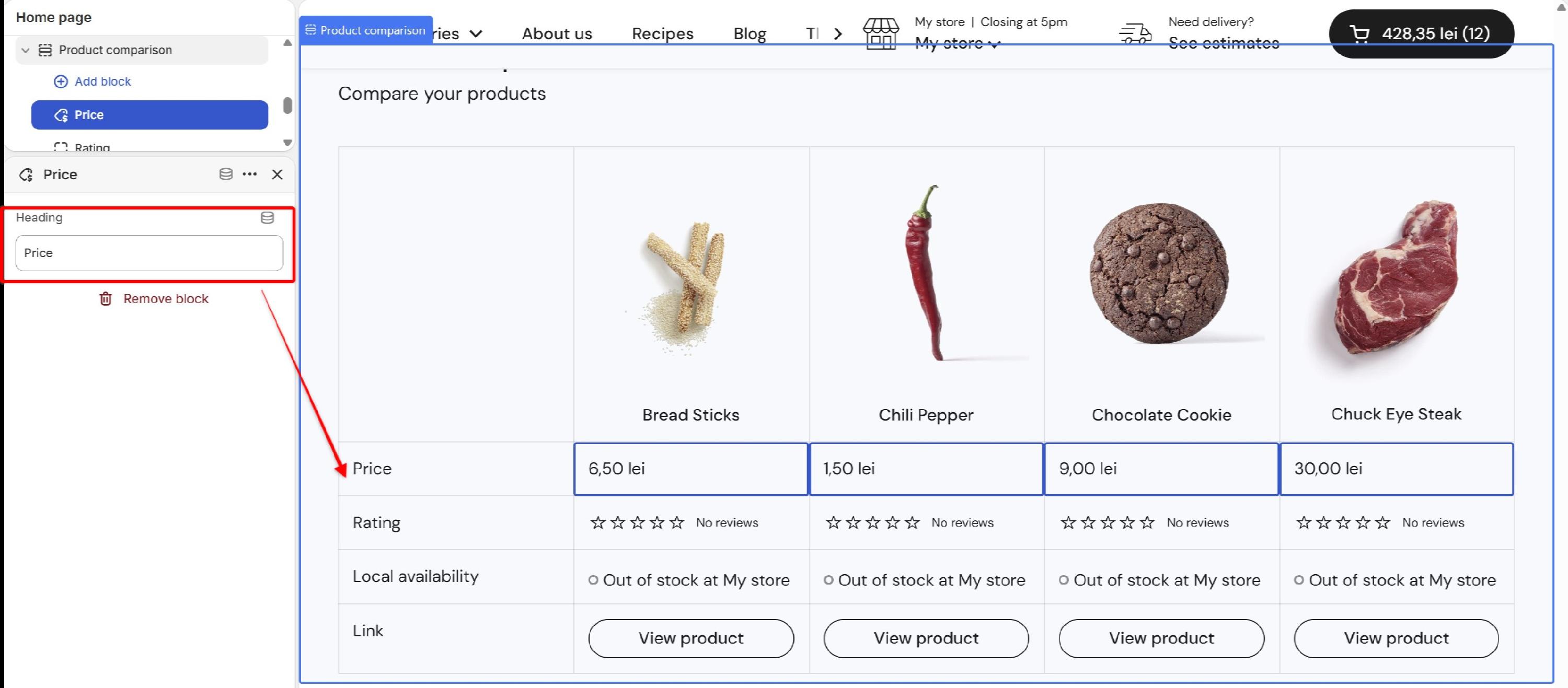
- Row headings are optional. You can show a left‑hand column of labels (e.g. "Price", "Rating") so it's clear what each row represents. Each block has a Heading field that sets the text used for its row label.
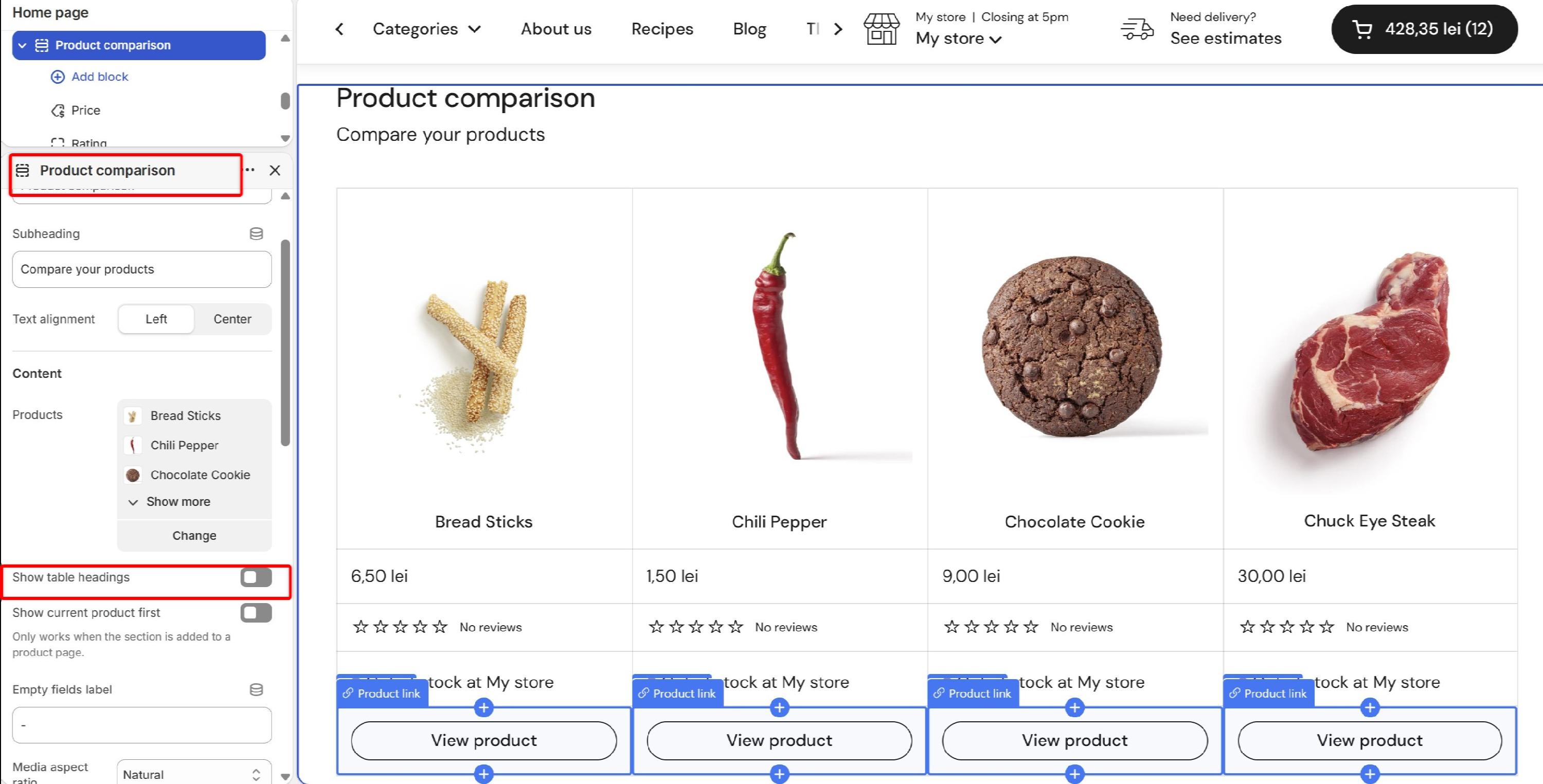
To hide these labels, disable Show table headings. The heading column will then be removed from the table.
- Empty values. If a product doesn't have a value for a particular row (no rating, no local availability, an empty metafield, etc.), the theme displays a placeholder instead. The default placeholder is a dash (
-), but you can change it in the section settings.
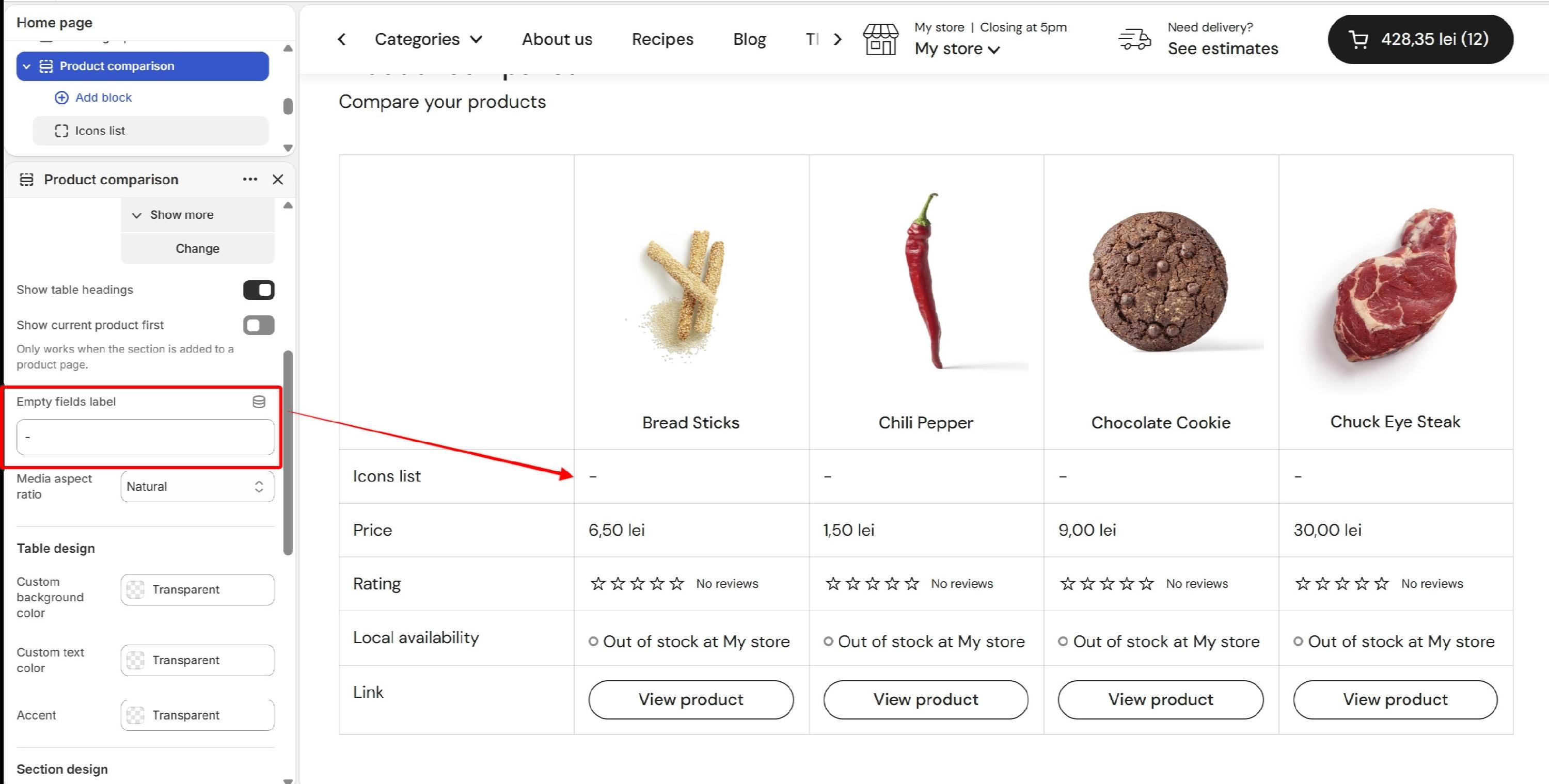
Product comparison section
The Product Comparison section lets you create a comparison table with a specific set of products. You can add it to almost any template, including the home page, a regular page, or a product page.
Choosing the products
- Products – Pick the products to compare, up to 4. The products appear as columns in the same order you add them in the section settings. Because you choose the products yourself, this is the static version of Product Comparison: the same products are shown to everyone.
- Show current product first – When the section is placed on a product page, you can enable the option Show current product first. When enabled, the product currently being viewed is automatically added as the first column. If that product is already included in the Products setting, it won't be added twice. This option only has an effect on product pages.
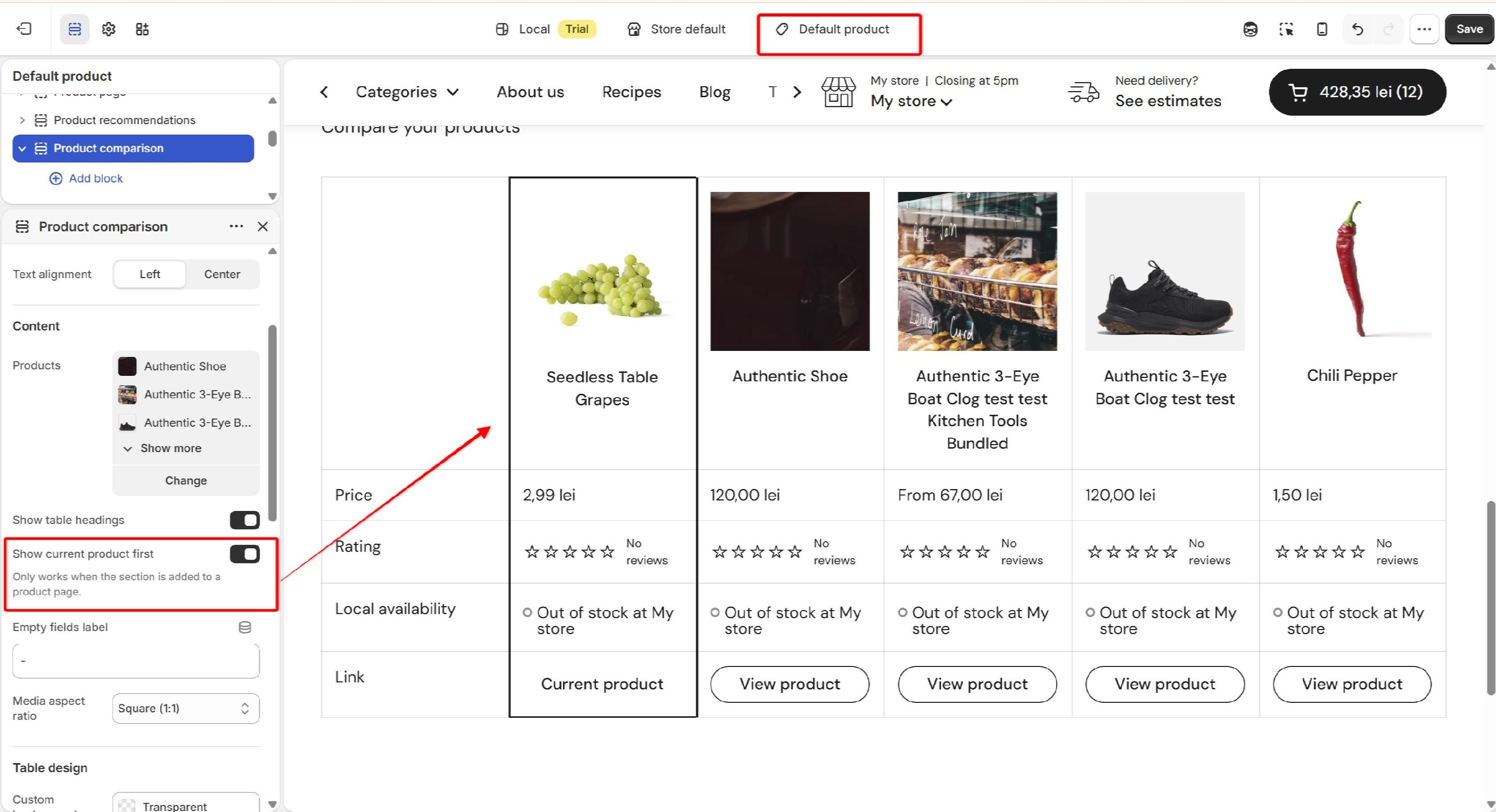
Product Comparison Template
The Product Comparison template creates a dedicated comparison page where shoppers choose the products they want to compare. Instead of selecting products in the theme editor, shoppers select them while browsing a collection.
Step 1 — Enable the compare tool on your collections
To enable the comparison controls:
- Open the Theme editor.
- Open a Collection template.
- Select the Product grid section.
- Enable Enable comparing option.
Once enabled, shoppers will see the following controls on the collection page:
- A Compare toggle near the collection filters. When enabled, comparison checkboxes appear on product cards.
- A compare bar fixed to the bottom of the screen, showing the number of selected products, such as X of 4 selected, and provides Compare and Clear actions.
- A maximum of 4 products. Once 4 products have been selected, the remaining checkboxes are disabled until the shopper removes one.
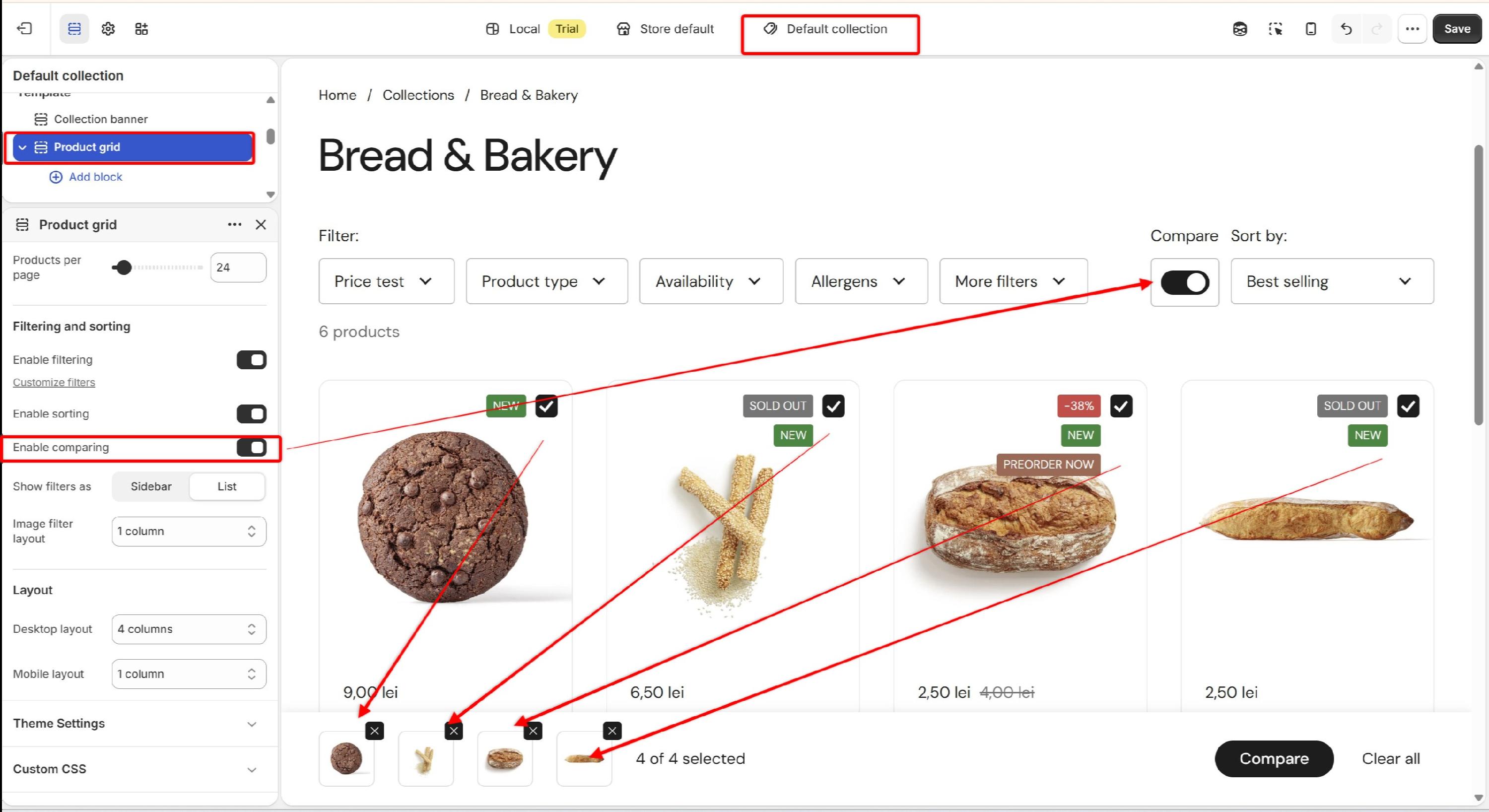
Selected products are remembered in the shopper's browser, so they can move between collection pages and continue building their comparison without losing their selection.
Step 2 — Set up the comparison page
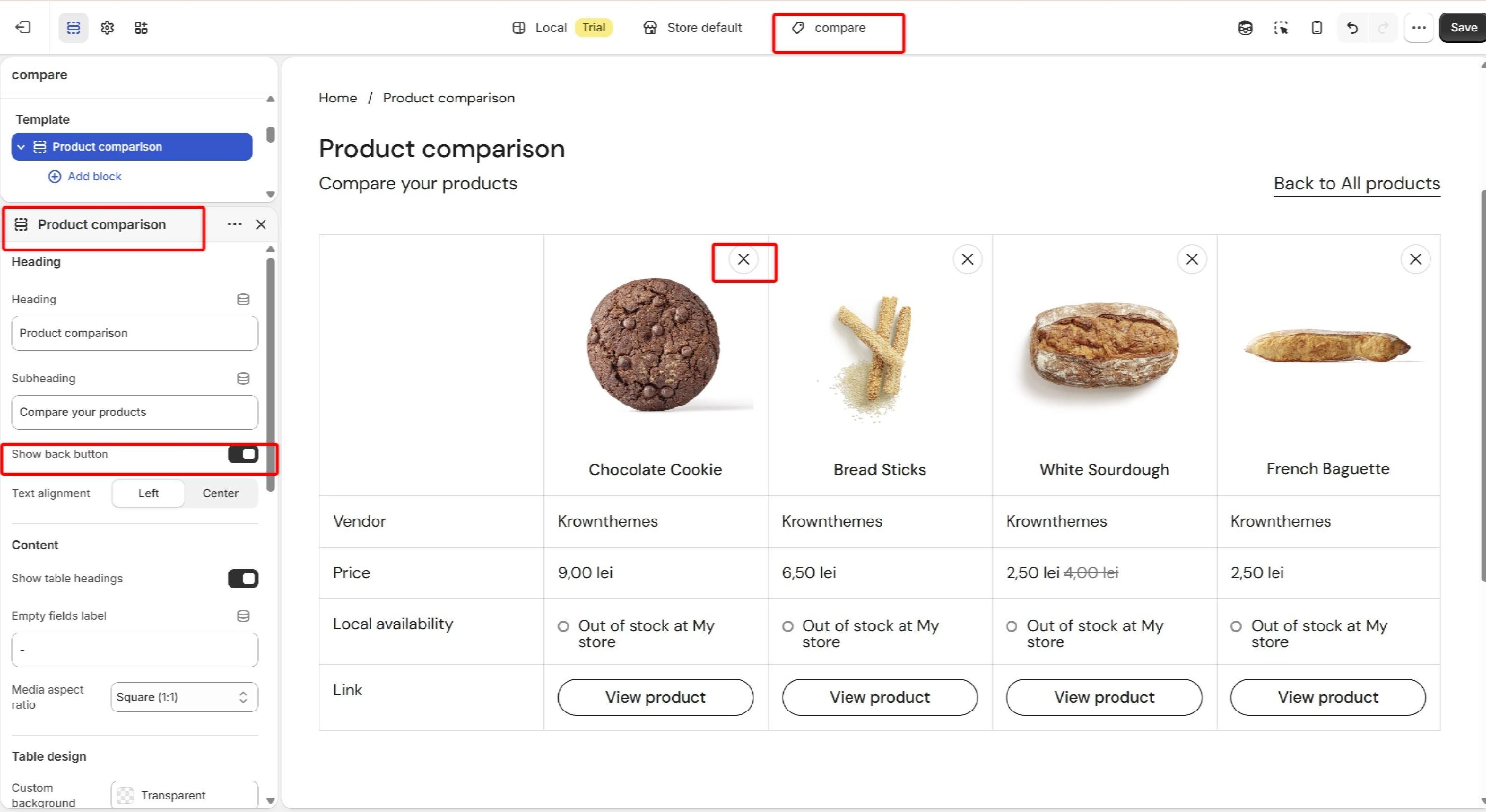
When the shopper clicks Compare button, they're taken to a dedicated comparison page. This page uses the product.compare product template, which contains the Product Comparison section.
- The products selected by the shopper are then loaded into the comparison table.
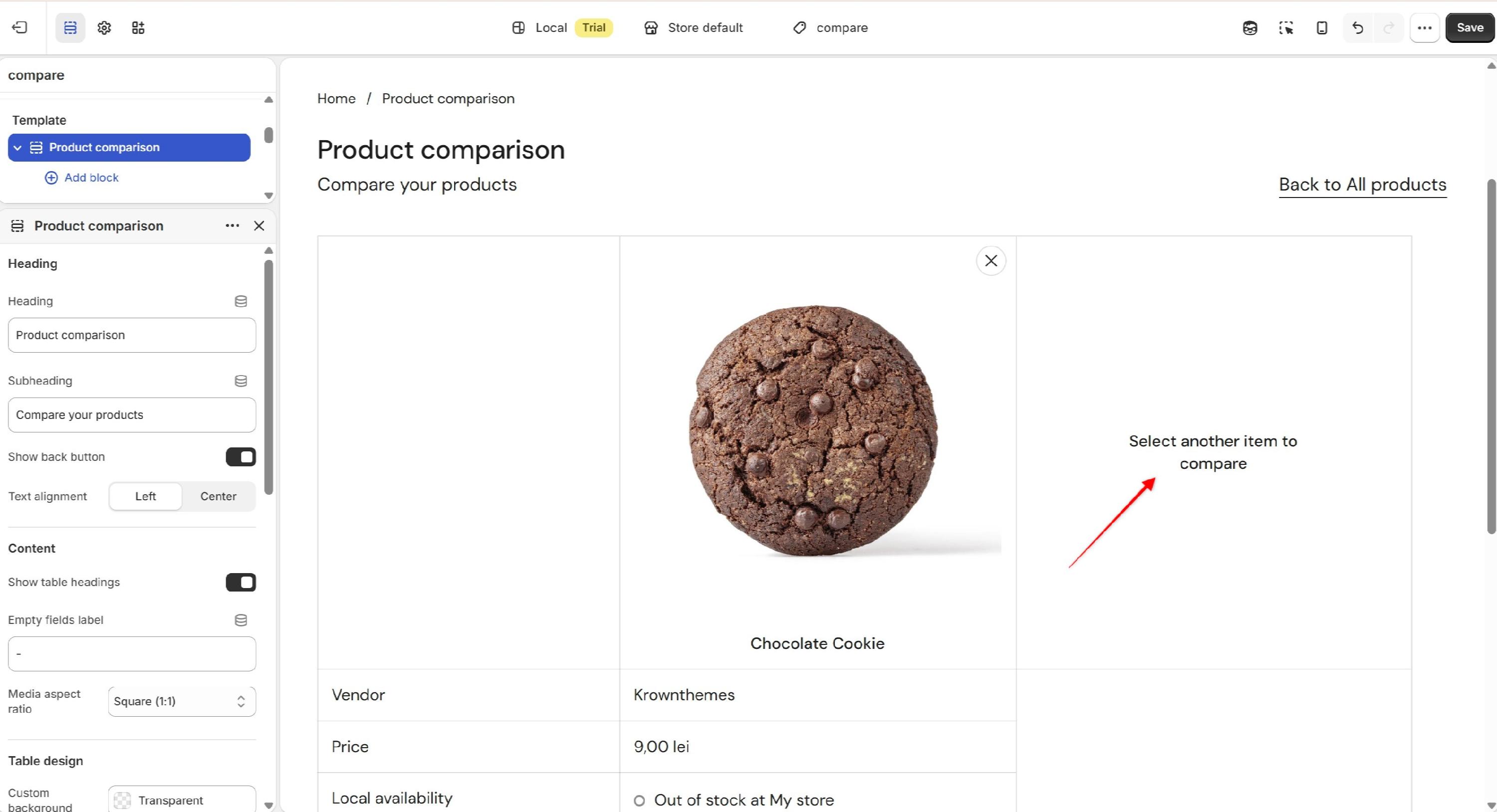
- Each column has a close (×) button allowing shoppers to remove individual products from the comparison.
- You can optionally display a Back to All Products link using the Back to All Products setting. When clicked, it takes the shopper back to the collection they came from, or to the full catalog as a fallback.
- If the shopper removes products until only one remains, the table shows a Select another item to compare message, encouraging them to add another product.
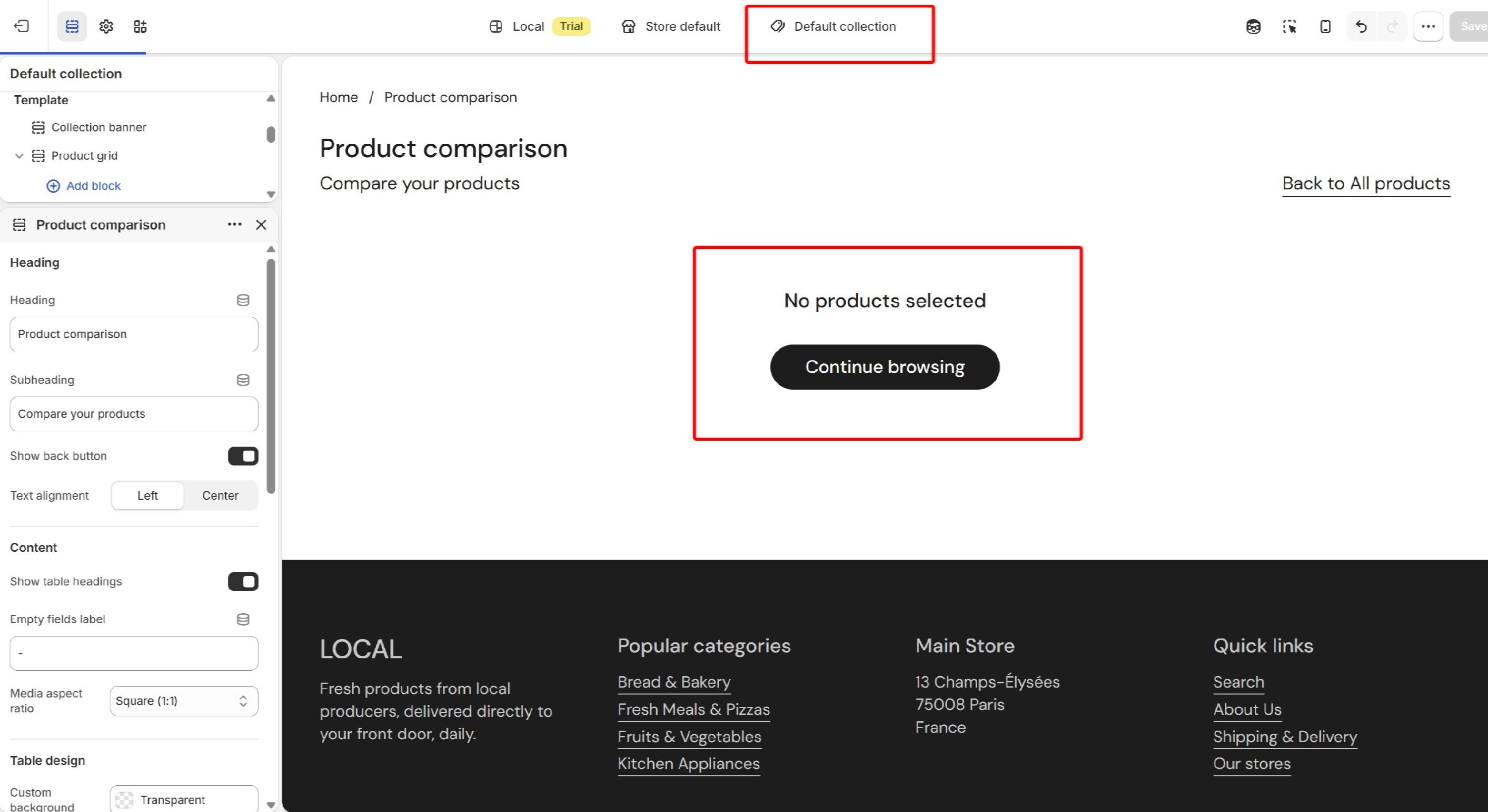
If they remove all products, an empty state is displayed with a link back to the catalog.
Quick reference
- Want a fixed, curated comparison you control? Use Product comparison section and pick the products yourself.
- Want shoppers to build their own comparison while browsing? Enable comparing option on your collection product grid and use Product comparison template.